



How-To Tips for Providers Using the Provider Web Portal
General Search – From most search tabs, you can enter information and press your "Enter" key to search; you no longer have to click Search.
- The exception to this is for fields such as Member ID, Claim Number, or Authorization Number where you can search for multiple entries at once. In these fields, pressing the "Enter" key after each of your entries allows you to input several search terms. Click Search after you have entered all your information in the box.
Eligibility Verification – You can search for up to 10 members at one time. Separate each member's PMI number by hitting the "Enter" key. When you've entered all your search terms, click Search.
Medical and Dental Accumulators – Currently, benefit accumulators are available in the member’s eligibility record for dental, skilled nurse visits, hearing aids, hospice election, and eyeglasses only.
- Under the “Eligibility & Benefits” menu, click on the "Eligibility" tab
- Enter a member ID or enter a last name and date of birth
- Select the member record and click on "accumulators"
- The medical or dental accumulator heading will be displayed along with the member’s accumulator history. If there is no benefit history on file for a member for these services, there will not be a heading listed.
Claims and Payment
Claims Search – This search feature allows users to search for claim information by claim number or member ID, date of birth, and service start/end dates.
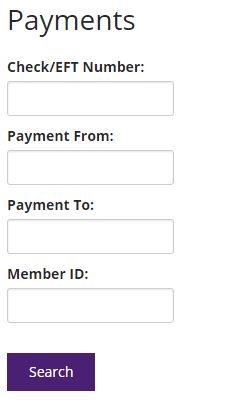
Payment Search – This search feature allows you to search for a payment by any of the following:
- Check or electronic funds transfer (EFT) number
- Member number
- Payment date range
This feature also allows providers to find negative balance remittances.
Payment search instructions
- To use this new feature, click on Payment under the "Claims & Payment" menu.

- Once the search screen opens, enter a check or EFT number, member ID, or the payment from and to dates. Hit "Enter" or click Search to search for payment information.
- When a payment is found that matches your criteria, you can click on the check number to view more information about that particular check, including all claims paid by that check. You can also click on View EOP to view the Explanation of Payment (EOP).
Printing Remittances Explanations of Payment (EOP) – If you need to print the remittance, select the claim and click View EOP. Once you view the EOP, you can print it by clicking Send to Printer.
Negative Balances – If your remittance advice doesn't balance, be sure to look under "Contractual Adjustments" on the first page to see if there is reference to an overpayment recovery along with a dollar amount. This indicates a negative balance for your facility. To find your negative balance remittance, follow the instructions under Payment Search above and search by payment date range to review previous remittances for your facility.
Secure Email – You can use the Messages feature to send information securely to the PrimeWest Health Provider Contact Center. To ask questions about eligibility, claims, or authorizations, select Online Customer Service under the Quick Links tab, and then Provider General Question. Please include any pertinent attachments with your message. Once a response is sent, you will receive an email notification. To view the response, click on Messages at the top right side of your screen.
PrimeWest Health encourages you to use your web portal account and appreciates any ideas you may have for improvement. We can also help with problems you may have navigating the site. Call the Provider Contact Center at 1-866-431-0802 (toll free) or use the General Questions feature in the portal. We would like to hear from you!
PW_2011_261
Updated_04/26/2017